Wednesday, 6 April 2016

Tuesday, 5 April 2016
free calls for everyone,everywhere, even on 2g
high voice qualityUnlike Skype or Viber, nanu uses up to 80% less bandwidth that works perfectly well even on 2g and congested networks. In other words, it works anywhere your phone does. Plus nanu sounds crisper and clearer.
nanu-out callsEnd your phones bills today! Experience a free voice-call to any landlines or mobile phones anywhere in the world without the need for you to pay. The more free Tapjoy apps you download, the more free credits you get.
messagingMissed a call? We got your back, nanu offers free and unlimited one-to-one messaging exclusive to all nanu users. Start sending messages today!
nanu-out callsEnd your phones bills today! Experience a free voice-call to any landlines or mobile phones anywhere in the world without the need for you to pay. The more free Tapjoy apps you download, the more free credits you get.
messagingMissed a call? We got your back, nanu offers free and unlimited one-to-one messaging exclusive to all nanu users. Start sending messages today!
why nanu
what is nanu
https://www.youtube.com/watch?v=Q4XKCSSkgYY
Follow Me If you like it.
Saturday, 26 March 2016
How to Download Youtube Video on Android Mobile
Videoder – Youtube Downloader For Android App Screenshot

Videoder is another great video downloading app for Android devices. With this app user can download shared videos from the internet. Downloading videos using this app is just a two step process. All you need to do is simply search for the video in the browser and download it from the result list that appears on the screen. Yes, this is all you need to do. One peculiar feature in this app is its resume function. You can now resume your interrupted videos. There is no longer the need to get frustrated over network interruptions. This will save you time as well as your useful data.You can download videos in all formats.
Wednesday, 23 March 2016
Free Android Video Converter, Convert videos
Now i am going to tell that how to convert videos on android phones. I will not tell you that fifty best video converter for android phone, Actually i am telling you the best one app for converting videos on android phones. And it's video converter name is VidTrim that is free and VidTrim pro is not free of cost.
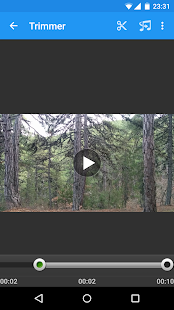
To download VidTrim Video converter open this link.
http://bit.ly/1U836je
If you like it comment below for help others.
To download VidTrim Video converter open this link.
http://bit.ly/1U836je
If you like it comment below for help others.
How To Download Any Video Online On Android Phone
Hello Friends
Streaming videos on your Android device is a great way to watch video on the go, but it can put a strain on your data plan, and if you lose signal then you lose the video. If you download the video instead, you can watch it any time. Follow this guide to learn how.This method only required to download uc browser. This is a simple and fast trick that allows you to download online videos. Only download this version,because only this version works to download any video from any website. To download this uc browser version apk file Just open this link.
http://7ba.org/ex/download/1351411/ucbrowser-v10-8-8-730-pf145-ru-intrialapollo-build160224221603-.apk

After download it just install and play video online from anywhere without youtube. If you want to know anything commnet below. if you like comment below for others.
Saturday, 12 March 2016
How to share your Android WiFi connection via Bluetooth
1 Open the Settings application.Tap menu button from home screen and search for "setting".One can also access setting by Pulling down notification panel and taping on Setting Icon.
2 Tap "More". Under Wireless & Networks Section , Tap More... This maybe under a different section/tab depending on the customizations made by your manufacturer.
3 Select "Tethering & mobile hotspot". This feature might also be named as "Tethering & Portable hotspot". In some cases, the option to activate is bluetooth and Wi-Fi hotspots is separate under the "more settings" section. If such is the case, skip ahead.
4 Tap "Bluetooth tethering".Tapping "Bluetooth tethering" will automatically first enables device's bluetooth followed by bluetooth tethering,If device ask for permission to enable bluetooth,grant it.
5 Connect to your other device using bluetooth.
6 Terminate Bluetooth tethering. Just uncheck the "Tethering & Portable hotspot" box and connection will be terminated.
* Your bluetooth might stay on after you unchecked the Box. Swipe down from the top and click the Bluetooth icon to turn it back off.
How to Share Your Smartphone's Internet Connection
Most modern smartphones can be turned into portable networks through a process called tethering. Devices can connect to your phone’s network, using its data signal to access the internet. Follow this guide to get tethering set up on your phone.
1 Open the Settings menu. This can be accessed either by hitting your phone’s Menu button while on the home screen, or by tapping the Settings app in your Application drawer.
2 Open the “Tethering and portable hotspot” menu. This will be accessible underneath the “Wireless and network” section of the Settings menu. Depending on your device, you may have to tap “More settings” in order to find the option.
3 Slide the Mobile Hotspot switch to On. If your plan allows you to use Mobile Hotspot, you will be taken to the settings screen. If you do not have access to Mobile Hotspot on your plan, a message will open telling you how to add it for your particular carrier.
4 Adjust your settings. You can set passwords and limit the number of devices that can connect to your hotspot. It is highly recommended that you set a password to keep unknown devices from using your data. The SSID that you enter is the name of the network that you will connect to with your other devices.
5 Connect your devices and enjoy. Once tethering is enabled, open the network settings on the device that you want to connect. Scan for the network that you created by tethering. Enter the password and your device will connect to your hotspot.
How to share data between android phone Best Data Sharing Android Apps
* SHAREit
Shareit is an amazing data sharing app which is developed by Lenovo Corp. Even though there are some other data sharing android apps which may have more features then Shareit but Shareit has some pros to. First of all, Shareit let you transfer data over wifi to any device supporting Android, IOS or windows. This makes data sharing between multiple device where convenient. Also it has the simplest User interface we ever come through. To download Shareit.(http://bit.ly/1RqUQY8)
* SuperBeam
SuperBeam may be considered as “THE” best data sharing android app available in Google play store right now. No app provides such an amazing features as SuperBeam does. SuperBeam let you pair device using NFC and QR code scanning. You can share more then one type of file in one go. SuperBeam also allows user who dont have app installed to transfer data through web interface. To download the app (http://bit.ly/1MpvECf)
* AirDroid
Android is the best android app to transfer data over wifi to your personal computer.Control your Android from computer and use any apps on computer, like WhatsApp, WeChat, and Line. (root required for some devices). There are lots of other amazing features like you can control your device from your personal computer, See through the lens of both front and back cameras,View the real time screen of Android devices, take static screenshots. (requires root). To download AirDroid (http://bit.ly/1ob1EyJ)
* Zapya

Zapya is another android app which supports cross platform data sharing. Zapya can transfer photo, music, video, and other file types from one device to another device without the aid of mobile network nor Wi-Fi routers. The content is duplicated directly from phone to phone at 128 times Bluetooth speed. To download the app (http://bit.ly/1ZzVV37)
How to Use Whatsapp On Pc Without Any Software
Use Whatsapp on Pc

WhatsApp is one of the best messaging clients around, and it just got better. Apart from supporting all mobile platforms, WhatsApp has now launched a web-based client, so you can finally use WhatsApp on your PC and sync with your phone.
“Our web client is simply an extension of your phone: the web browser mirrors conversations and messages from your mobile device — this means all of your messages still live on your phone,” WhatsApp said in their official blog.
How To Use WhatsApp Web (And What You Need)

WhatsApp Web is super simple to use, although it has some restrictions in which devices it works with. You will need:
- A phone running on Android, BlackBerry, Nokia S60 or Windows Phone. WhatsApp Web won’t work with iPhones because it restricts background multitasking and push notifications, according to The Verge. Chalk up yet another reason to choose Android over iPhone.
- Google Chrome. WhatsApp Web works on Windows, Mac OS X and Linux, but it only supports the Chrome web browser. We already know it’s the fastest browser, but apparently WhatsApp believes it has the best push notifications system, according to GigaOm. That seems like a weak excuse to restrict to Chrome, in our opinion, and there might just be something else to the story. However, it works with other browsers based on Chrome, like Opera, which is a faster and simpler Chrome. Note: If you’re in a restricted installs environment (like your office PC) and still want to use it, you can download the portable version of Chrome from our Best Portable Apps list. We checked, it works.
- You’ll need to update WhatsApp from your smartphone app store or install the latest version.
- Your phone will have to be connected to the Internet at all times.
If you have those elements ready, setting up WhatsApp Web is a snap.

- On your WhatsApp mobile app, tap Menu > WhatsApp Web to start the QR code reader.
- Point your phone’s camera to the QR code on your PC screen.
As soon as WhatsApp reads the QR code, it will sync with your phone and you’re ready to go. It’s that simple! WhatsApp rises to the top of web apps that make creatives use of QR codes.
What You Can Do With WhatsApp Web

The web interface lets you do a number of useful things:
- Use your keyboard to type.
- Access media (photos, videos, audio) in-line. You can also download any media directly to your PC.
- Start a new conversation with any contact, or search for existing conversations.
- View contact info.
- Talk in group chats and view group info.
- Connect multiple computers to your phone and save them for the future. You can also remotely disconnect any browser from your phone.
- Get or mute desktop alerts and sounds.
- Share photos, record audio, or use your webcam.
What You Can’t Do With WhatsApp Web

Get WhatsApp Web: web.whatsapp.com
Subscribe to:
Posts (Atom)